


InConnect
InConnect ist ein Plug-and-Play-Dienst, der ein sicheres Remote-Netzwerk für Ihre Geräte erstellt und es Technikern ermöglicht, problemlos Fernwartung, Software-Updates und Protokolldiagnosen durchzuführen.
InConnect
InConnect ist ein Plug-and-Play-Dienst, der ein sicheres Remote-Netzwerk für Ihre Geräte erstellt und es Technikern ermöglicht, problemlos Fernwartung, Software-Updates und Protokolldiagnosen durchzuführen.
Fernzugriffsdienst

Benutzerfreundlicher Fernverbindungsdienst
Die Geräte sind sofort einsatzbereit und ermöglichen einheitliche Überwachung und Fernsteuerung. Die einfache Bedienung erfordert keine umfassenden IT/OT-Kenntnisse.

Sicheres und zuverlässiges Cloud-Management
Hochsichere Cloud-Server, fortschrittliche Zugriffskontrollen und mehrschichtige Verschlüsselung gewährleisten eine robuste Netzwerksicherheit.
Fernverbindung für verschiedene Geräte
Es unterstützt Industrie-PCs, Server, Kameras, SPSen und andere Geräte und ermöglicht es Ihnen, Netzwerkstandorte hinzuzufügen oder zu entfernen, ohne das Netzwerk neu aufbauen zu müssen.

„Alles aus einer Hand“-Verbindungsservice
InConnect integriert Geräte und Plattform in der Cloud und bietet so einen Komplettservice ohne Wartungsaufwand für ein unkompliziertes Plug-and-Play-Erlebnis.
Benutzerfreundlicher Fernverbindungsdienst
Die Geräte sind sofort einsatzbereit und ermöglichen einheitliche Überwachung und Fernsteuerung. Die einfache Bedienung erfordert keine umfassenden IT/OT-Kenntnisse.
Sicheres und zuverlässiges Cloud-Management
Hochsichere Cloud-Server, fortschrittliche Zugriffskontrollen und mehrschichtige Verschlüsselung gewährleisten eine robuste Netzwerksicherheit.
Fernverbindung für verschiedene Geräte
Es unterstützt Industrie-PCs, Server, Kameras, SPSen und andere Geräte und ermöglicht es Ihnen, Netzwerkstandorte hinzuzufügen oder zu entfernen, ohne das Netzwerk neu aufbauen zu müssen.
„Alles aus einer Hand“-Verbindungsservice
InConnect integriert Geräte und Plattform in der Cloud und bietet so einen Komplettservice ohne Wartungsaufwand für ein unkompliziertes Plug-and-Play-Erlebnis.
-
Standortverwaltung
Konfigurationsaktualisierung Batch-Fernkonfiguration und AufgabenverteilungsmanagementFirmware-Upgrade Stapelweise Firmware-Aktualisierung und Verwaltung von AktualisierungsaufgabenOperationsanalyse Netzbetreiberstatistiken, Verbindungsstatistiken und GIS-GerätestandortverfolgungRemote-Web Fernzugriff auf Router zur Durchführung von KonfigurationsänderungenRouter/Gateway Anlagenverwaltung für Seriennummern, ICCIDs, IMSIs usw.; Betriebsüberwachung wie Netzwerkstatus, Datenverkehr und SignalverlaufAufgabenverfolgung Verwaltung aller Systemaufgaben des Geräts mit Online-Status- und FortschrittsverfolgungEndgeräte Zentralisierte Verwaltung und Wartung von SPS/HMI und anderen Endgeräten mit Fernzugriffsunterstützung
-
Netzwerkmanagement
Kundenzugriff Unterstützt mehrere Clients, Benutzeranmeldung und Zugriffsdauerkontrolle; beschränkt die zugänglichen MAC-AdressenNetzwerkberechtigungen Unterteilt Netzwerkgruppen und steuert Benutzerzugriffsberechtigungen für Websites und Berechtigungen zur Kontodatenverwaltung.Peer-to-Peer-Netzwerk Konzipiert für die Fernwartung von Geräten, unterstützt es die Wartung von SPS/HMI und anderen Geräten mit virtuellem und realem IP-Zugriff.Star Network Konzipiert für Remote-Office-Szenarien, ermöglicht es den Zugriff auf interne Unternehmensserver und Dateiressourcen von zu Hause oder unterwegs.Verkehrsstatistik Statistiken zum Datenverkehr bei Remote-Verbindungen
-
Netzwerkzugriffskapazität
Router-Zugriffsbeschränkung Bis zu 4.000 Zugangspunkte pro registriertem KontoZugriffsbeschränkung für Endgeräte Bis zu 254 Endgeräte pro Router-Knoten vor Ort
Spezifikationen
-
Standortverwaltung
Konfigurationsaktualisierung Batch-Fernkonfiguration und AufgabenverteilungsmanagementFirmware-Upgrade Stapelweise Firmware-Aktualisierung und Verwaltung von AktualisierungsaufgabenOperationsanalyse Netzbetreiberstatistiken, Verbindungsstatistiken und GIS-GerätestandortverfolgungRemote-Web Fernzugriff auf Router zur Durchführung von KonfigurationsänderungenRouter/Gateway Anlagenverwaltung für Seriennummern, ICCIDs, IMSIs usw.; Betriebsüberwachung wie Netzwerkstatus, Datenverkehr und SignalverlaufAufgabenverfolgung Verwaltung aller Systemaufgaben des Geräts mit Online-Status- und FortschrittsverfolgungEndgeräte Zentralisierte Verwaltung und Wartung von SPS/HMI und anderen Endgeräten mit Fernzugriffsunterstützung
-
Netzwerkmanagement
Kundenzugriff Unterstützt mehrere Clients, Benutzeranmeldung und Zugriffsdauerkontrolle; beschränkt die zugänglichen MAC-AdressenNetzwerkberechtigungen Unterteilt Netzwerkgruppen und steuert Benutzerzugriffsberechtigungen für Websites und Berechtigungen zur Kontodatenverwaltung.Peer-to-Peer-Netzwerk Konzipiert für die Fernwartung von Geräten, unterstützt es die Wartung von SPS/HMI und anderen Geräten mit virtuellem und realem IP-Zugriff.Star Network Konzipiert für Remote-Office-Szenarien, ermöglicht es den Zugriff auf interne Unternehmensserver und Dateiressourcen von zu Hause oder unterwegs.Verkehrsstatistik Statistiken zum Datenverkehr bei Remote-Verbindungen
-
Netzwerkzugriffskapazität
Router-Zugriffsbeschränkung Bis zu 4.000 Zugangspunkte pro registriertem KontoZugriffsbeschränkung für Endgeräte Bis zu 254 Endgeräte pro Router-Knoten vor Ort
Downloads
Verwandte Produkte
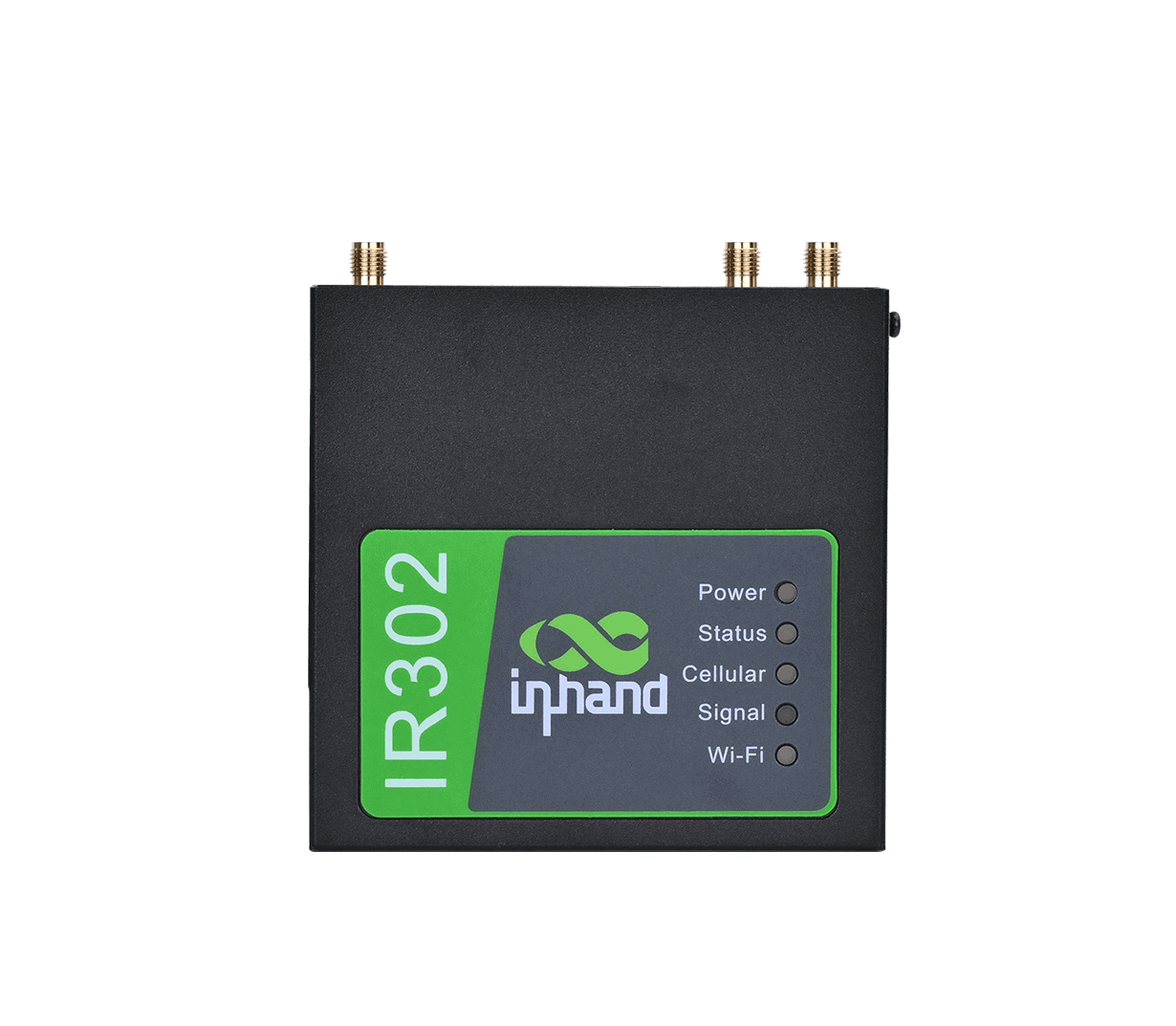
Industrierouter
Hochzuverlässiger LTE-Router in Industriequalität

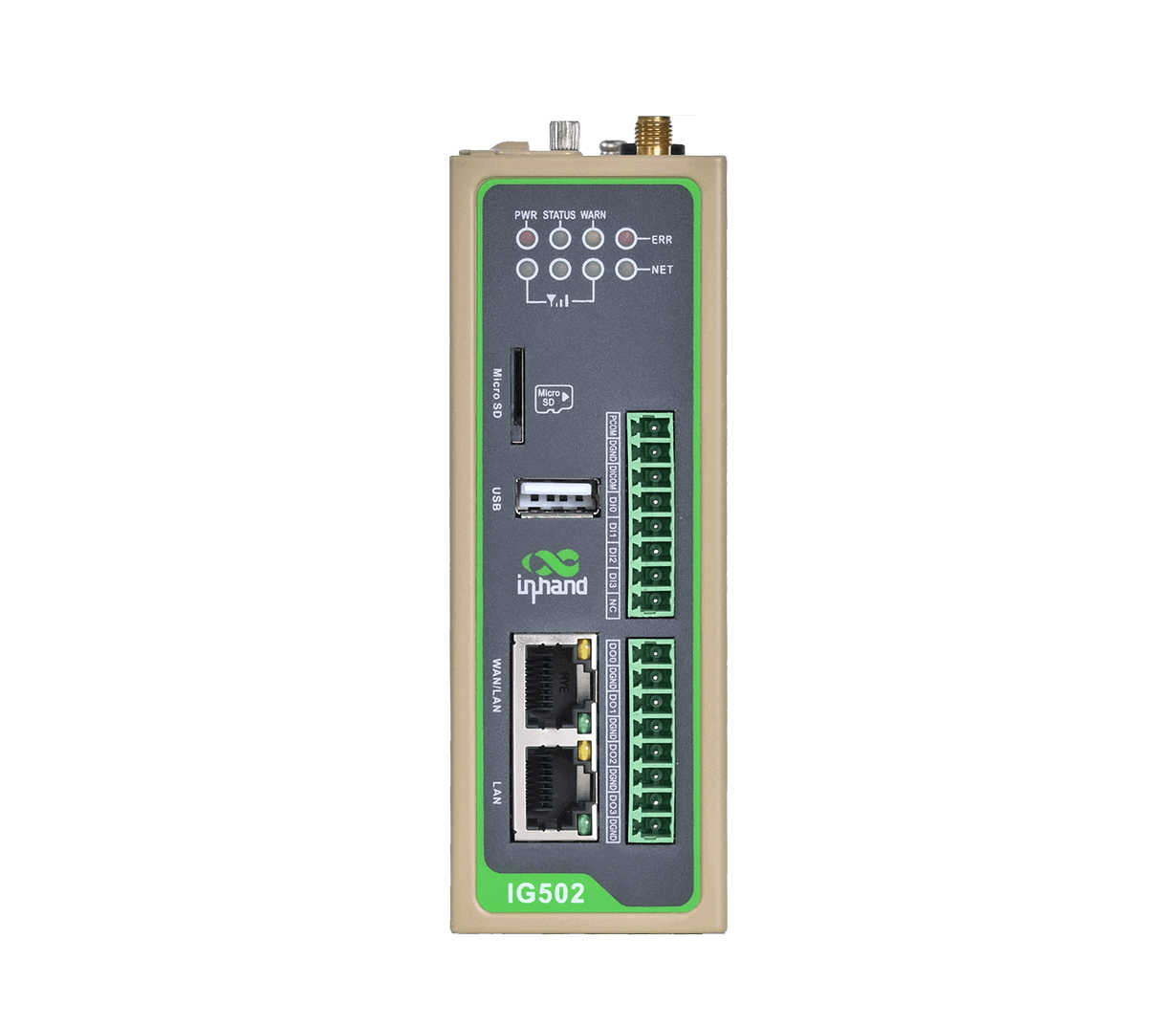
Edge-Gateway
Multi-Protokoll-IoT-Gateway für IoT-Anwendungen
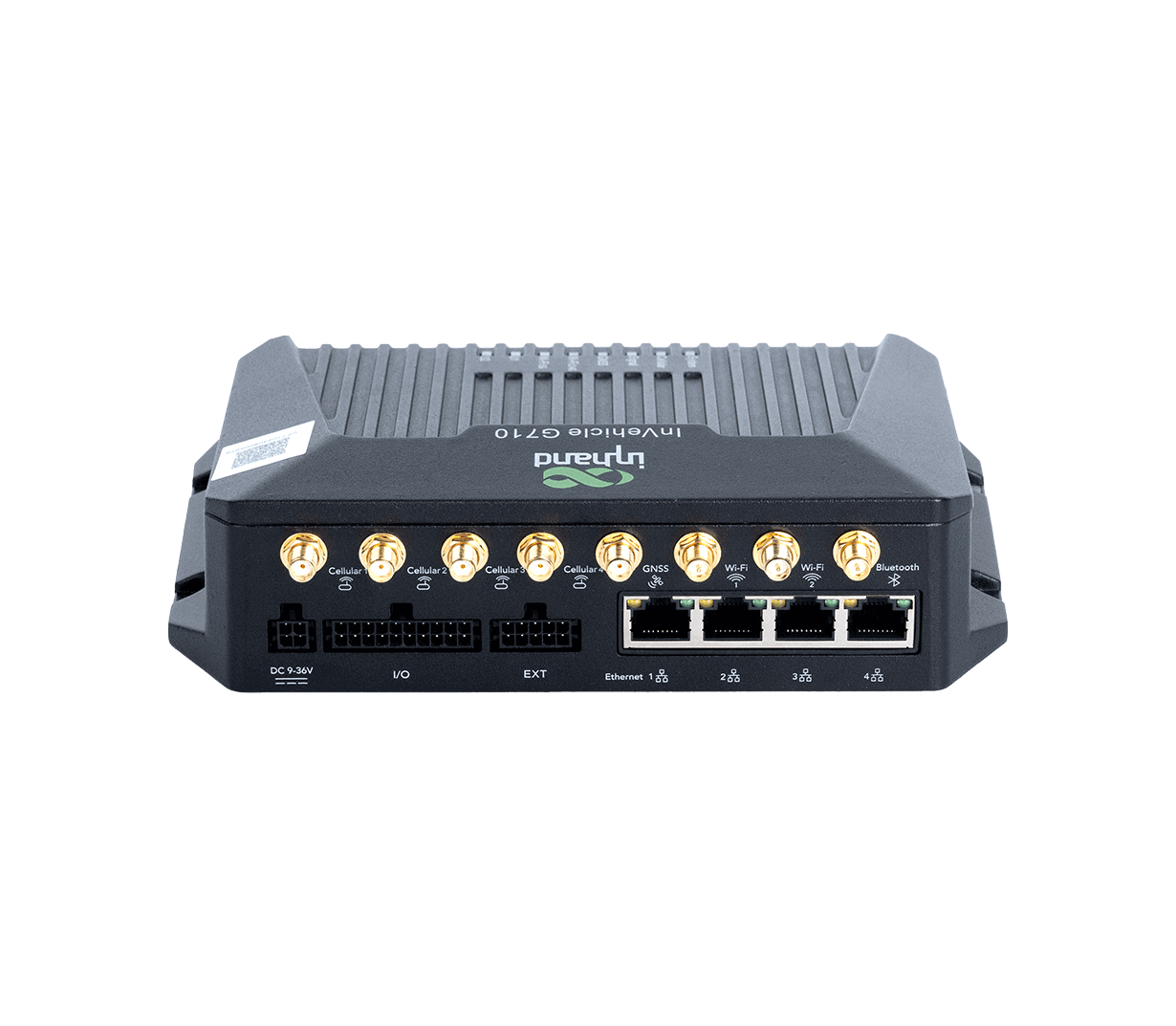
Fahrzeug-Gateway
4G/5G-Fahrzeuggateway – das Internet der Fahrzeuge
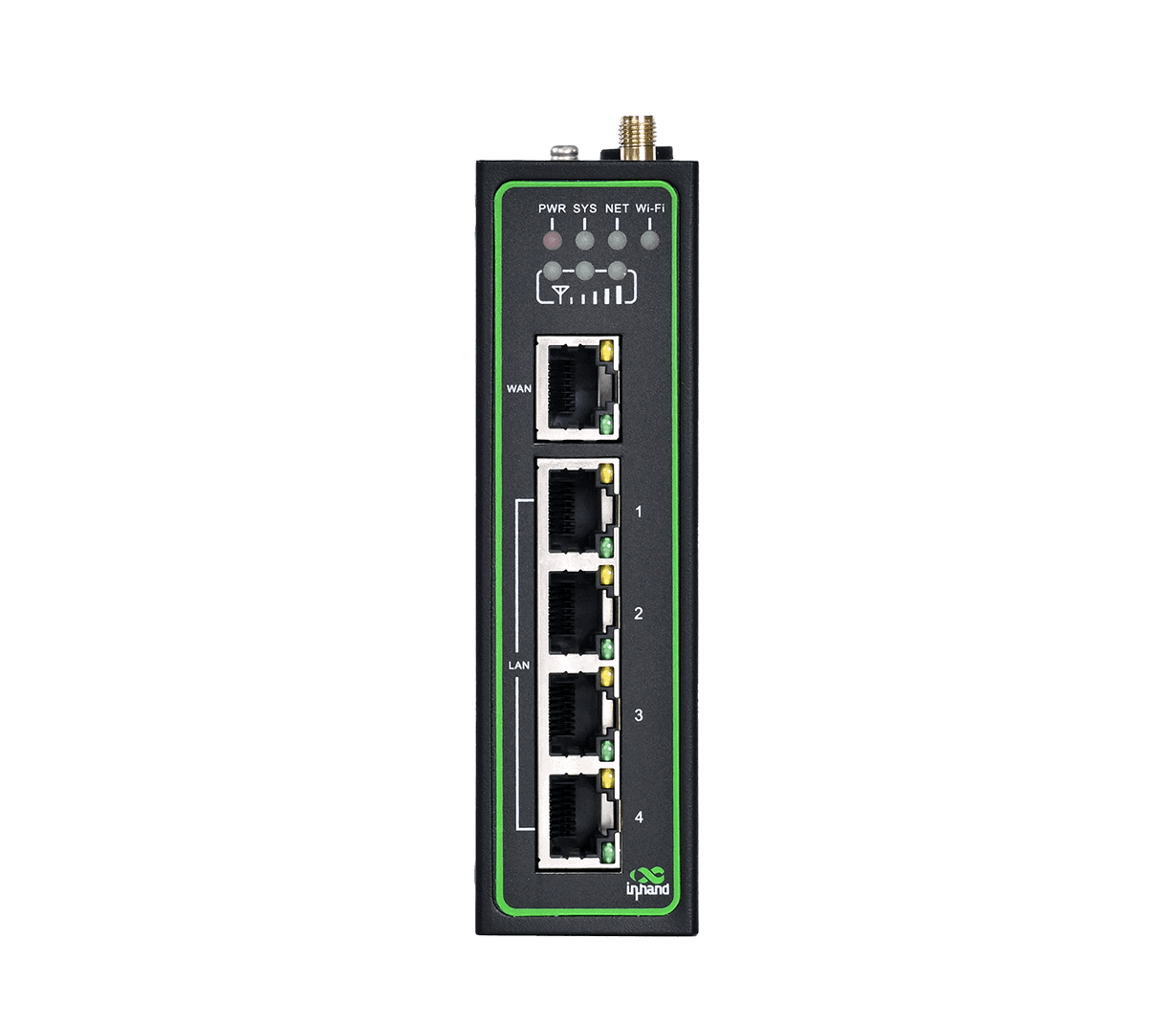
IR315
4G/WLAN/VPN/Sicherheit/Cloud-Verwaltung
Industrierouter
Ähnliche Fälle

Fernüberwachung von CNC-Maschinen
Anwendungen und Anwendungsfälle zur Fernüberwachung von CNC-Maschinen – Wichtigste Erkenntnisse zur Fernüberwachung von…
Mehr erfahren →
Intelligente Betonmischanlagenlösung
Intelligente Betonmischanlagen – Anwendungsbeispiele und Schlüsselerkenntnisse: Die IR315…
Mehr erfahren →
Fernüberwachungslösung für die digitale Fabrik
Fernüberwachungslösung für digitale Fabrikanwendungen und Anwendungsfälle – Wichtigste Erkenntnisse…
Mehr erfahren →
Fernüberwachung von Spritzgießmaschinen
Fernüberwachung von Spritzgießmaschinen: Anwendungen und Fallstudien – Wichtigste Erkenntnisse…
Mehr erfahren →Häufig gestellte Fragen
Was bietet ICS an?
ICS ist InHands Netzwerkdienst aus einer Hand Für Unternehmenskunden – eine SaaS-Plattform für Fernverbindungen/VPN, mit der Sie jederzeit und überall über einen Browser einfach auf weltweit verteilte Geschäftsstandorte und Außengeräte zugreifen können. Highlights aus der Spezifikation V4.1 und dem Benutzerhandbuch:
| Portal-URL — Global | https://ics.inhandnetworks.com/ |
| Portal-URL — Europa | https://ics.inhandnetworks.eu/ (für Benutzer/Geräte in der europäischen Region) |
| Serverbereitstellung | Amazon US für Nutzer außerhalb Chinas; Amazon China für Nutzer in China; Europa Region ebenfalls eingesetzt |
| Architektur | SaaS, Plug-and-Play; intelligente virtuelle IP-Zuordnung (Keine lokale Netzwerkkonfiguration erforderlich); OpenVPN-basierte sichere Verbindungskanäle |
| Kapazität | Bis zu 4.000 Benutzerkonten + Router pro Konto; bis zu 254 nachgelagerte Endgeräte pro Router |
| Kostenmodell | Bezahlung pro Datenverkehr (1 TP4T2,5 / GB gemäß Handbuch-FAQ); jedes Konto beginnt mit einem 10 GB kostenloses Datenvolumen |
| Unterstützte InHand-Router/Gateways | InRouter300, InRouter600, InRouter900, InGateway500, InGateway902 (= IG500/IG900), InVehicle G710, InVehicle G814-Serie |
| Unterstützte Client-Betriebssysteme | Laut Handbuch werden Windows und Android (OpenVPN-Client) unterstützt; die Spezifikation listet außerdem Linux, iOS, iPads und Android-Tablets auf. |
Gemäß der Spezifikation V4.1 werden vier Zugriffstopologien unterstützt: Benutzer-zu-Gerät, Standort-zu-Standort, Gerät-zu-Gerät, Mehrere-zu-mehrere-Standorte.
Wie füge ich einen Router zu ICS hinzu?
Drei Schritte: Router im Portal vorab hinzufügen, die Web-GUI des Routers so konfigurieren, dass sie auf ICS verweist, und anschließend den OpenVPN-Client auf dem PC des Technikers installieren, um die sichere Verbindung zu nutzen.
1. Fügen Sie den Router im Portal vorab hinzu.- Anmelden unter
https://ics.inhandnetworks.com/(Global) oderhttps://ics.inhandnetworks.eu/(Europa). - Wählen Standorte > Router und klicken Hinzufügen.
- Im Router erstellen Dialog, geben Sie ein Routername, Die Seriennummer (vom Typenschild oder der Web-Verwaltungsseite des Geräts) und wählen Sie die richtige aus Router-Modell.
- Klicken OKDer Router erscheint in der Liste, und ICS weist ihm einen Speicherplatz zu. virtuelle IP-Adresse dafür.
- Windows: Laden Sie den OpenVPN-Client von ICS herunter, installieren Sie ihn, führen Sie ihn als Administrator aus und klicken Sie mit der rechten Maustaste auf das Symbol in der Taskleiste → Importdatei → Importieren Sie die Konfigurationsdatei Ihres Benutzers (aus der Benutzerliste) → VerbindenSobald das Symbol grün leuchtet, befinden Sie sich im Tunnel und können die virtuelle IP-Adresse des Routers anpingen. (Deaktivieren Sie die Windows Defender Firewall oder aktivieren Sie ICMP, falls Pings blockiert werden.)
- Android: Scannen Sie den QR-Code in ICS, um den OpenVPN Android-Client herunterzuladen, importieren Sie die Konfigurationsdatei, schalten Sie das OpenVPN-Profil ein und pingen Sie die virtuelle IP-Adresse des Routers an, um dies zu überprüfen.
Das ausgewählte Routermodell muss mit dem physischen Gerät übereinstimmen; andernfalls kann der Router möglicherweise keine Verbindung herstellen.
2. Konfigurieren Sie die Web-GUI des Routers für die Verbindung mit ICS. Melden Sie sich mit den Geräteanmeldeinformationen auf dem Typenschild des GerätsDer Menüpfad variiert je nach Serie:
| Routerfamilie | Verbinden über | Web-GUI-Pfad | Einstellungen |
| IR300-Serie | 192.168.2.1 (LAN) | Dienste > Geräte-Manager | Serviceart = InConnect-DienstServer = ics.inhandnetworks.com; Registriertes Konto = Ihre ICS-E-Mail-Adresse → Anwenden |
| IR600-Serie | 192.168.2.1 (LAN) | Dienste > Geräte-Manager | Gleiches wie oben → Anwenden |
| IR900-Serie | 192.168.2.1 (LAN) | Administration > Geräte-Manager | Wählen Geräte-Manager aktivieren; Diensttyp = InConnect-DienstServeradresse = ics.inhandnetworks.com; Registriertes Konto = Ihre ICS-E-Mail-Adresse → Jetzt bewerben & sparen |
| IG500-Serie | 192.168.1.1 (FE0/1-Anschluss) | System > InHand Cloud → InHand Connect Service Tab | Serveradresse = ics.inhandnetworks.com; Registriertes Konto = Ihre ICS-E-Mail-Adresse → Einreichen |
| IG900-Serie | 192.168.2.1 (GE0/2-Anschluss) | System > InHand Cloud → InHand Connect Service Tab | Gleiches wie IG500 → Einreichen |
| VG710-Serie | 192.168.2.1 | Administration > Geräte-Manager | Wählen Geräte-Manager aktivieren; Diensttyp = InConnect-DienstServeradresse = ics.inhandnetworks.com; Registriertes Konto = Ihre ICS-E-Mail-Adresse → Jetzt bewerben & sparen |
Wenn der Gerätestatus anzeigt Verbunden / „Verbindung akzeptiert“, der Router ist mit ICS verbunden. Wenn der Status anzeigt RegistrierenÜberprüfen Sie, ob der Router in Schritt 1 tatsächlich dem Portal hinzugefügt wurde.
3. Überprüfen Sie die Verbindung und installieren Sie den OpenVPN-Client. Zurück im Portal, der Router Online-Status wird grün wenn registriert, und seine VPN-Status wird grün Wenn der sichere Tunnel aktiv ist. Wenn Sie online sind, aber die VPN-Verbindung offline ist, klicken Sie hier. Laufende Konfiguration senden in der Spalte „Router/Gateways“ die Aktion auswählen, um die Verbindung erneut auszulösen.
Installieren Sie den OpenVPN-Client auf Ihrem lokalen PC oder Mobilgerät, um den Tunnel nutzen zu können:
Wie kann ich per Fernzugriff auf ein Endgerät (SPS, HMI, Kamera usw.) hinter dem Router zugreifen?
ICS unterstützt zwei Zugriffsmodi für nachgelagerte Endgeräte — virtuelle IP (Standard, automatisch zugeordnet, konfliktfrei) und reale IP (Nutzt die lokale IP-Adresse des Geräts, ist anspruchsvoller, aber möglich). Beide Varianten ermöglichen es einem autorisierten Techniker, über die ICS-Cloud auf das Endgerät zuzugreifen, als wäre es lokal.
Modus A: Virtuelle IP (Standard, empfohlen). ICS ordnet jedem nachgelagerten Gerät automatisch eine virtuelle IP-Adresse zu, sodass keine lokalen IP-Konflikte auftreten.
- Gehen Sie im Portal zu Standorte → Endgeräte → Hinzufügen (oder klicken Sie auf den übergeordneten Router und verwenden Sie Endgeräte → Erstellen).
- Geben Sie die Adresse des Endgeräts ein Name, es ist reale IP im LAN des Routers und wählen Sie das übergeordnete Element aus. Website (Router) dahinter sitzt er.
- Klicken EinreichenICS ordnet das Endgerät automatisch einem zu virtuelle IP – zum Beispiel eine SPS mit echtem IP
192.168.2.215könnte einer virtuellen IP-Adresse zugeordnet werden10.16.46.1. - Bis zu 254 nachgelagerte Endgeräte pro Router.
- Installieren Sie auf Ihrem lokalen PC den ICS-Client und stellen Sie eine Verbindung her. Pinge die virtuelle IP-Adresse an. um die Erreichbarkeit zu bestätigen – wenn der Ping erfolgreich ist, können Sie nun über den ICS-Wartungskanal mithilfe seiner virtuellen IP-Adresse remote auf das Endgerät zugreifen (Web-GUI, SPS-Programmiersoftware, Live-Kameraansicht usw.).
- Gehen Sie im Portal zu Standorte > RouterKlicken Sie auf den Zielrouter und Realen IP-Zugriff aktivieren.
- Konfigurieren Sie die Netzwerksegment des/der nachgeschalteten Geräts/Geräte.
- Fügen Sie die nachgelagerten Geräte hinzu, die über die reale IP-Adresse erreicht werden sollen.
- Testen Sie die Konnektivität über die reale IP-Adresse Ihres Clients.
- Sowohl virtuelle als auch reale IP-Adressen funktionieren nach der Aktivierung der realen IP-Adresse. Vermeiden Sie doppelte IP-Adressen auf verschiedenen Websites. Um Zugriffskonflikte zu vermeiden – verwenden Sie bei komplexen Bereitstellungen ICS. Netzwerke Modul (Mesh oder Stern) für zusätzliche Isolation.
Modus B: Reale IP. Wenn die Anwendung die ursprüngliche IP-Adresse vor Ort benötigt – z. B. wenn SCADA-Tools oder SPS-Programmiergeräte an bestimmte IP-Adressen gebunden sind – können Sie den Zugriff auf die echte IP-Adresse routerweise aktivieren.
Wie sind Standorte, Benutzer und Fernverwaltung in ICS organisiert?
- Netzwerke — Mesh-Netzwerke Zugriff isolieren, sodass nur Benutzer und Standorte im selben Mesh miteinander kommunizieren können (ein pro-Mesh-System) Geräte-zu-Geräte-Zugriff Der Switch kann zudem den Zugriff zwischen Routern blockieren, während der Benutzerzugriff weiterhin möglich ist. Star Networks bieten eine Hub-and-Spoke-Topologie. Standardnetzwerk ist ein Mesh-Netzwerk, dem alle neuen Router und Benutzer automatisch beitreten.
- Routerverwaltung (Standorte → Router): Routerliste mit Standort-Tag, ICCID, IMEI, Signal-/Verkehrsstatistiken und benutzerdefinierte Spaltenfelder zum Taggen; Routerdetails für Fernverwaltung von Webanwendungen (Öffnen der lokalen Web-GUI des Routers über ICS), Offline-Modus erzwungen, Stapelverarbeitung Konfigurationsaktualisierung (vorlagenbasiert), Stapelverarbeitung Firmware-Upgradeund ein Aufgaben Seite zum Anzeigen / erneuten Zustellen / Stornieren von versendeten Aufgaben.
- Benutzerverwaltung — Benutzer hinzufügen mit Anmeldeberechtigung (Erlauben / Nicht erlaubt); einladen Externe Benutzer (Ingenieure mit eigenen ICS-Konten) in Ihre Organisation; Rollen Sie sind *Administrator* (vollständige Ansicht + Verwaltung) oder *Standardbenutzer* (nur grundlegende Operationen); aktivieren Mehrfachterminal um einem Benutzer den gleichzeitigen Zugriff auf entfernte Geräte von mehreren Geräten aus zu ermöglichen.
- Verbrauch & Abrechnung — Anzeige des Datenverkehrs pro Router / pro Benutzer auf dem Verbrauch Seite; Dienst ist Abrechnung pro GB ($2.5/GB) mit einem 10 GB kostenloses Datenvolumen Bei der Kontoerstellung; monatliche Rechnungen werden am 1. per E-Mail versendet.