


ODU2002
Outdoor-5G-Router
Maximieren Sie die Signalstärke mit dem ODU2002. Dieser robuste Outdoor-Router gemäß IP67 nutzt Hochleistungsantennen für einen hervorragenden 5G-Empfang und bietet stabile Verbindungen zu Indoor-Netzwerken in jedem Klima.
ODU2002
Outdoor-5G-Router
Maximieren Sie die Signalstärke mit dem ODU2002. Dieser robuste Outdoor-Router gemäß IP67 nutzt Hochleistungsantennen für einen hervorragenden 5G-Empfang und bietet stabile Verbindungen zu Indoor-Netzwerken in jedem Klima.
FOTO
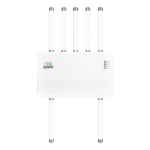
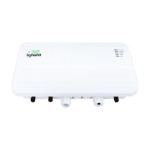
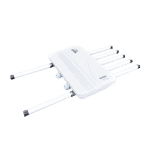
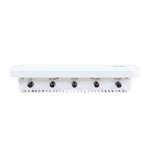
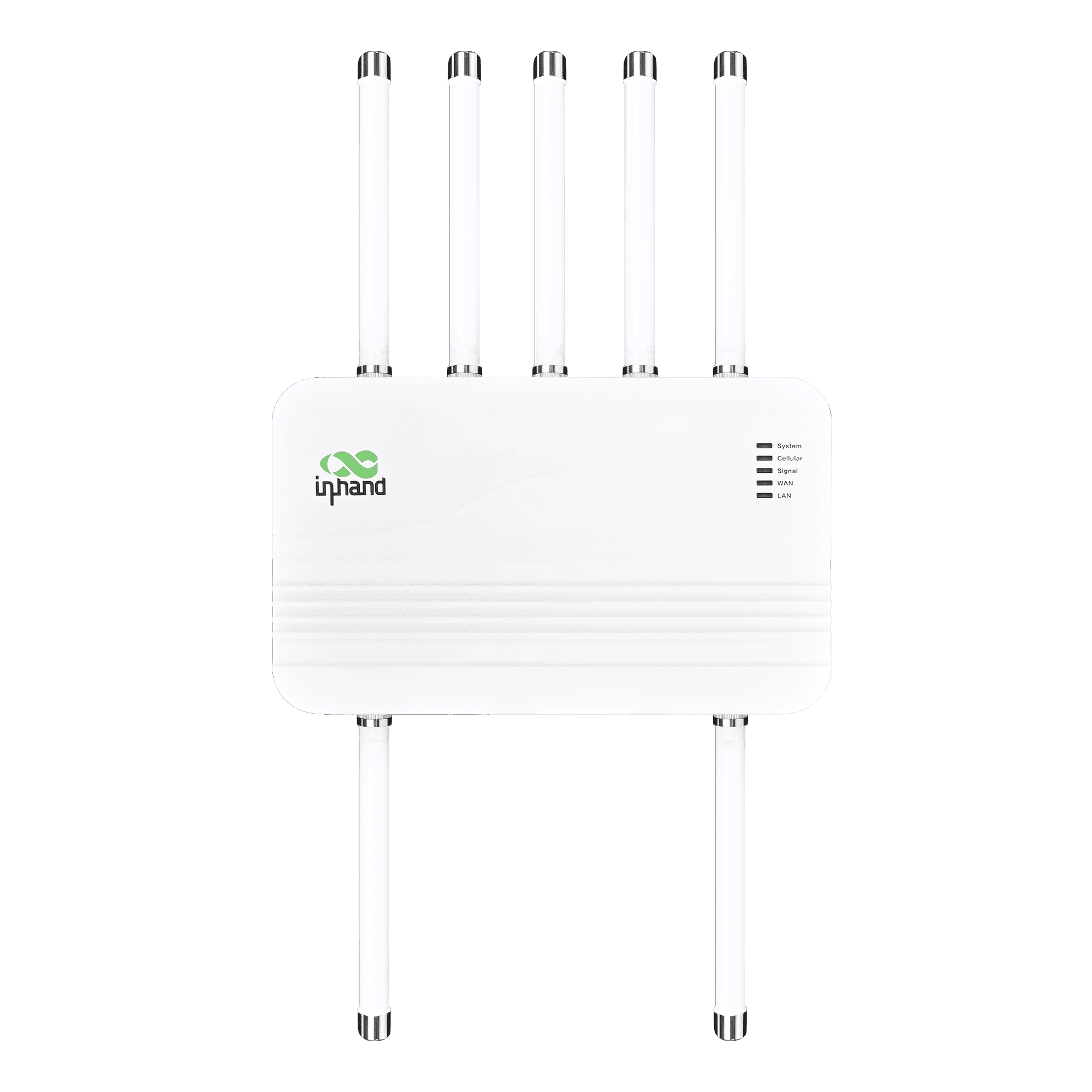
Outdoor-5G-Router für Hochgeschwindigkeitsverbindungen

Hochverfügbares 5G
Bietet Highspeed-5G mit bis zu 4,76 Gbit/s DL und 1,25 Gbit/s UL und gewährleistet so latenzarmen Zugriff für unternehmenskritische Operationen überall.

Robust und wetterfest gemäß IP67
Entwickelt mit der Schutzart IP67, um Staub, Regen und extremen Temperaturen standzuhalten und so Stabilität auch unter rauen Außenbedingungen zu gewährleisten.

6 Hochleistungsantennen
Optimiert den Signalempfang mit leistungsstarken Breitbandantennen, erweitert die Reichweite und erhöht die Geschwindigkeit auch in abgelegenen Gebieten mit schwachem Signal.

PoE für flexible Bereitstellung
Unterstützt Power over Ethernet (PoE), wodurch die Daten- und Stromübertragung über ein einziges Kabel ermöglicht und somit die Installation im Außenbereich vereinfacht wird.

Cloud-Fernverwaltung
Zentralisieren Sie die Steuerung mit InCloud Manager. Konfigurieren, überwachen und aktualisieren Sie Geräte remote, um die IT-Effizienz zu steigern und Vor-Ort-Besuche zu reduzieren.

Präzise GPS-Positionierung
Die Integration von GNSS ermöglicht die Echtzeit-Standortverfolgung für ein effizientes Anlagenmanagement und die Visualisierung der Bereitstellung auf Cloud-Karten.
-
Technische Kernspezifikationen
Antennen TNC: 6 × Sub-6 + 1 × GNSS + 1 × WLANMobilfunk 5G SA/NSA + LTE Cat19; up to 4.76 Gbps DL / 1.25 Gbps UL (5G); dual-SIM / optional eSIMCloud-Management InCloud ManagerUmfeld -30 °C ~ +70 °C (-22 °F ~ +158 °F) op.; IEC 60068 salt mist / shock / vibration / dropEthernet / PoE / USB 2 × 2,5 GbE (WAN/LAN); PoE 802.3af/at Eingang; USB-C 2.0GNSS GPS, GLONASS, Beidou, Galileo, QZSSNetzwerk & Sicherheit IPv4/IPv6; VLAN, DHCP, DDNS; PPPoE; Dual-SIM; Link-Backup; NAT; Firewall, ACLKraft / Mechanisch PoE 802.3at; ≤15 W; 360 × 220 × 72 mm (14.17 × 8.66 × 2.83 in); 2.87 kg (6.33 lb); metal; fanless; wall/pole; IP67SIM 2 × Nano-SIM (hot-swap); eSIM optionalDurchsatz / Benutzer Bis zu 2 Gbit/s; bis zu 200 BenutzerVPN IPsec, L2TPW-lan 802.11 b/g/n, 2,4-GHz-Access Point, 150 Mbit/s
-
Leistungskennzahlen
Empfohlene Nutzer 200Durchsatz Bis zu 2 Gbit/s
-
Schnittstellen
Antenne TNC-Typ; 6 × Sub-6, 1 × GNSS, 1 × Wi-FiEthernet 2 × 2,5 GbE RJ45, WAN/LAN umschaltbar, Dual-LANGNSS GPS / GLONASS / Beidou / Galileo / QZSSBoden 1 × GNDLED System, Mobilfunk, Signal, WAN, LANPOE PoE im LAN-Port (802.3af/at)Zurücksetzen Reset-TasteSIM 2 × Nano 4FF, Hot-PlugUSB 1 × Typ-C 2.0
-
Mobilfunk
5G-Antennenfrequenz 600–5000 MHz5G-Antennengewinn 6,46 dBiDatenrate 5G: 4,76 Gbit/s Download / 1,25 Gbit/s Upload; 4G: 1,6 Gbit/s Download / 200 Mbit/s Upload
-
Leistung
Eingang Power over Ethernet (PoE) 802.3atStromverbrauch ≤ 15 W
-
Mechanisch
Abmessungen 360 × 220 × 72 mm (14.17 × 8.66 × 2.83 in)Gehäuse Metall, lüfterlosInstallation Wandmontage, MastmontageGewicht 2.87 kg (6.33 lb)
-
Umfeld
Luftfeuchtigkeit 5–95 % RH (nicht kondensierend)Betriebstemperatur -30 °C ~ +70 °C (-22 °F ~ +158 °F)Schutz IP67Salznebel IEC 60068-2-52Lagertemperatur -40 °C ~ +85 °C (-40 °F ~ +185 °F)
-
EMV
Durchgeführt EN 61000-4-6 Stufe 3EFT/Burst EN 61000-4-4 Stufe 3ESD EN 61000-4-2 Stufe 3RE/CE Klasse A, Abstand 3 dBRFI EN 61000-4-3 Stufe 3Anstieg EN 61000-4-5 Stufe 3
-
Physisch
Freier Fall IEC 60068-2-32Schock IEC 60068-2-27Vibration IEC 60068-2-6
-
Zertifizierung
Zertifizierung FCC, IC, PTCRB, Verizon, T-Mobile, CEGarantie 3 Jahre
-
Cloud-Management
Merkmale Zentralisierte Verwaltung, Dashboard, Stapelaktualisierung, Uplink-ManagementPlattform InCloud Manager
-
Netzwerkfunktionen
Zugang 5G/4G, EthernetAnwendungen VLAN, DHCP-Server/Client, DNS, DDNS, Feste Adresse, IP-PassthroughWählen PPPoE, automatische Wahlwiederholung per Mobilfunk, Dual-SIM-Umschaltung, APN-KonfigurationSchnittstelle Duplex-Modus, VerbindungsaushandlungIP-Protokoll IPv4 / IPv6Link-Backup Lastverteilung auf PaketebeneLinküberwachung Echtzeit-Verzögerungs-, Jitter- und PaketverlusterkennungLinkpriorität Anpassung der Verbindungspriorität
-
Sicherheit
Firewall Zugriffskontrolle, Portzuordnung, Portweiterleitung, MAC-FilterungVPN IPsec-VPN, L2TP-VPN
-
Überwachung
Zelluläres Signal RSSI, RSRP, RSRQ, SINRArmaturenbrett Geräteinformationen, Schnittstellenstatus, VerkehrsstatistikenProtokolle Systemprotokolle, Diagnoseprotokolle, Geräteereignisse, E-Mail-Benachrichtigungen
-
W-lan
Modus 2,4-GHz-AP-Modus
-
Politik
Politik Richtlinienbasierte Weiterleitung, Verkehrsgestaltung
-
Selbstheilung
Wachhund Software- und Hardware-Überwachung
Standardpaket*
- ODU02 Outdoor-Router *1
- 5G-Antenne *2
- 5G-MIMO-Antenne *4
- Wi-Fi-Antenne *1
- GNSS-Antenne *1
- Ethernet-Kabel *1
- PoE-Adapter-Netzkabel*1
- Montagehalterung *1
- Montageplatte *1
- Edelstahlrohr-Campingplatz *2
* Der Standardpaketinhalt variiert je nach Standardbestellcode.
Kontaktieren Sie uns Um mehr über unsere Verpackungsoptionen zu erfahren, wenden Sie sich bitte direkt an uns.
Spezifikationen
-
Technische Kernspezifikationen
Antennen TNC: 6 × Sub-6 + 1 × GNSS + 1 × WLANMobilfunk 5G SA/NSA + LTE Cat19; up to 4.76 Gbps DL / 1.25 Gbps UL (5G); dual-SIM / optional eSIMCloud-Management InCloud ManagerUmfeld -30 °C ~ +70 °C (-22 °F ~ +158 °F) op.; IEC 60068 salt mist / shock / vibration / dropEthernet / PoE / USB 2 × 2,5 GbE (WAN/LAN); PoE 802.3af/at Eingang; USB-C 2.0GNSS GPS, GLONASS, Beidou, Galileo, QZSSNetzwerk & Sicherheit IPv4/IPv6; VLAN, DHCP, DDNS; PPPoE; Dual-SIM; Link-Backup; NAT; Firewall, ACLKraft / Mechanisch PoE 802.3at; ≤15 W; 360 × 220 × 72 mm (14.17 × 8.66 × 2.83 in); 2.87 kg (6.33 lb); metal; fanless; wall/pole; IP67SIM 2 × Nano-SIM (hot-swap); eSIM optionalDurchsatz / Benutzer Bis zu 2 Gbit/s; bis zu 200 BenutzerVPN IPsec, L2TPW-lan 802.11 b/g/n, 2,4-GHz-Access Point, 150 Mbit/s
-
Leistungskennzahlen
Empfohlene Nutzer 200Durchsatz Bis zu 2 Gbit/s
-
Schnittstellen
Antenne TNC-Typ; 6 × Sub-6, 1 × GNSS, 1 × Wi-FiEthernet 2 × 2,5 GbE RJ45, WAN/LAN umschaltbar, Dual-LANGNSS GPS / GLONASS / Beidou / Galileo / QZSSBoden 1 × GNDLED System, Mobilfunk, Signal, WAN, LANPOE PoE im LAN-Port (802.3af/at)Zurücksetzen Reset-TasteSIM 2 × Nano 4FF, Hot-PlugUSB 1 × Typ-C 2.0
-
Mobilfunk
5G-Antennenfrequenz 600–5000 MHz5G-Antennengewinn 6,46 dBiDatenrate 5G: 4,76 Gbit/s Download / 1,25 Gbit/s Upload; 4G: 1,6 Gbit/s Download / 200 Mbit/s Upload
-
Leistung
Eingang Power over Ethernet (PoE) 802.3atStromverbrauch ≤ 15 W
-
Mechanisch
Abmessungen 360 × 220 × 72 mm (14.17 × 8.66 × 2.83 in)Gehäuse Metall, lüfterlosInstallation Wandmontage, MastmontageGewicht 2.87 kg (6.33 lb)
-
Umfeld
Luftfeuchtigkeit 5–95 % RH (nicht kondensierend)Betriebstemperatur -30 °C ~ +70 °C (-22 °F ~ +158 °F)Schutz IP67Salznebel IEC 60068-2-52Lagertemperatur -40 °C ~ +85 °C (-40 °F ~ +185 °F)
-
EMV
Durchgeführt EN 61000-4-6 Stufe 3EFT/Burst EN 61000-4-4 Stufe 3ESD EN 61000-4-2 Stufe 3RE/CE Klasse A, Abstand 3 dBRFI EN 61000-4-3 Stufe 3Anstieg EN 61000-4-5 Stufe 3
-
Physisch
Freier Fall IEC 60068-2-32Schock IEC 60068-2-27Vibration IEC 60068-2-6
-
Zertifizierung
Zertifizierung FCC, IC, PTCRB, Verizon, T-Mobile, CEGarantie 3 Jahre
-
Cloud-Management
Merkmale Zentralisierte Verwaltung, Dashboard, Stapelaktualisierung, Uplink-ManagementPlattform InCloud Manager
-
Netzwerkfunktionen
Zugang 5G/4G, EthernetAnwendungen VLAN, DHCP-Server/Client, DNS, DDNS, Feste Adresse, IP-PassthroughWählen PPPoE, automatische Wahlwiederholung per Mobilfunk, Dual-SIM-Umschaltung, APN-KonfigurationSchnittstelle Duplex-Modus, VerbindungsaushandlungIP-Protokoll IPv4 / IPv6Link-Backup Lastverteilung auf PaketebeneLinküberwachung Echtzeit-Verzögerungs-, Jitter- und PaketverlusterkennungLinkpriorität Anpassung der Verbindungspriorität
-
Sicherheit
Firewall Zugriffskontrolle, Portzuordnung, Portweiterleitung, MAC-FilterungVPN IPsec-VPN, L2TP-VPN
-
Überwachung
Zelluläres Signal RSSI, RSRP, RSRQ, SINRArmaturenbrett Geräteinformationen, Schnittstellenstatus, VerkehrsstatistikenProtokolle Systemprotokolle, Diagnoseprotokolle, Geräteereignisse, E-Mail-Benachrichtigungen
-
W-lan
Modus 2,4-GHz-AP-Modus
-
Politik
Politik Richtlinienbasierte Weiterleitung, Verkehrsgestaltung
-
Selbstheilung
Wachhund Software- und Hardware-Überwachung
Downloads
Bestellung
Standardpaket*
- ODU02 Outdoor-Router *1
- 5G-Antenne *2
- 5G-MIMO-Antenne *4
- Wi-Fi-Antenne *1
- GNSS-Antenne *1
- Ethernet-Kabel *1
- PoE-Adapter-Netzkabel*1
- Montagehalterung *1
- Montageplatte *1
- Edelstahlrohr-Campingplatz *2
* Der Standardpaketinhalt variiert je nach Standardbestellcode.
Kontaktieren Sie uns Um mehr über unsere Verpackungsoptionen zu erfahren, wenden Sie sich bitte direkt an uns.
InCloud Manager
Cloudbasierte Netzwerkmanagementplattform
KI-gestützte Netzwerkplattform für Filialketten und KMU, die die zentrale Überwachung und Verwaltung von Routern, Access Points und Switches ermöglicht.
InCloud Manager
Ähnliche Fälle

Unterbrechungsfreies 5G-Netzwerk für Unternehmensfilialen
Unterbrechungsfreies 5G-Netzwerk für Unternehmensniederlassungen: Anwendungen und Anwendungsfälle – Wichtigste Erkenntnisse…
Mehr erfahren →
Effiziente Unternehmensfilialnetzwerke
Effiziente Unternehmensnetzwerke: Anwendungen und Anwendungsfälle – Wichtigste Erkenntnisse zum Aufbau effizienter Unternehmensnetzwerke…
Mehr erfahren →
5G-Netzwerke für Filialketten
5G-Netzwerke für Filialketten: Anwendungen und Anwendungsfälle – Wichtigste Erkenntnisse zu 5G-Netzwerken…
Mehr erfahren →Häufig gestellte Fragen
Welche Mobilfunkanbieter sind nach ODU2002 zertifiziert?
1. Stellen Sie sicher, dass UniFi eingerichtet ist und funktioniert.
2. Schalten Sie Ihren UniFi Access Point ein und stellen Sie sicher, dass er mit Ihrer UniFi-Konsole verbunden ist.*
3. Öffnen Sie Ihre UniFi Mobile App (iOS / Android) oder navigieren Sie zu Ihrem UniFi Site Manager.
4. Klicken/Tippen Sie, um Ihr Gerät zu übernehmen, wenn es angezeigt wird.
Die Access Points werden eingeschaltet, wenn sie über einen PoE-Adapter an einen UniFi PoE-Switch oder ein Netzteil angeschlossen sind.
*Für eine optimale Einrichtung wird ein UniFi Cloud Gateway empfohlen.
Wie schließe ich die ODU2002 an die Stromversorgung an?
1. Stellen Sie sicher, dass UniFi eingerichtet ist und funktioniert.
2. Schalten Sie Ihren UniFi Access Point ein und stellen Sie sicher, dass er mit Ihrer UniFi-Konsole verbunden ist.*
3. Öffnen Sie Ihre UniFi Mobile App (iOS / Android) oder navigieren Sie zu Ihrem UniFi Site Manager.
4. Klicken/Tippen Sie, um Ihr Gerät zu übernehmen, wenn es angezeigt wird.
Access Points schalten sich ein, sobald sie über einen PoE-Adapter an einen UniFi PoE-Switch oder ein Netzteil angeschlossen sind. *Für eine optimale Einrichtung wird ein UniFi Cloud Gateway empfohlen.
Wie verbinde ich das ODU2002 mit dem Mobilfunknetz und richte den APN ein?
1. Stellen Sie sicher, dass UniFi eingerichtet ist und funktioniert.
2. Schalten Sie Ihren UniFi Access Point ein und stellen Sie sicher, dass er mit Ihrer UniFi-Konsole verbunden ist.*
3. Öffnen Sie Ihre UniFi Mobile App (iOS / Android) oder navigieren Sie zu Ihrem UniFi Site Manager.
4. Klicken/Tippen Sie, um Ihr Gerät zu übernehmen, wenn es angezeigt wird.
Access Points schalten sich ein, sobald sie über einen PoE-Adapter an einen UniFi PoE-Switch oder ein Netzteil angeschlossen sind. *Für eine optimale Einrichtung wird ein UniFi Cloud Gateway empfohlen.
Wie richte ich IP-Passthrough auf dem ODU2002 ein?
1. Stellen Sie sicher, dass UniFi eingerichtet ist und funktioniert.
2. Schalten Sie Ihren UniFi Access Point ein und stellen Sie sicher, dass er mit Ihrer UniFi-Konsole verbunden ist.*
3. Öffnen Sie Ihre UniFi Mobile App (iOS / Android) oder navigieren Sie zu Ihrem UniFi Site Manager.
4. Klicken/Tippen Sie, um Ihr Gerät zu übernehmen, wenn es angezeigt wird.
Access Points schalten sich ein, sobald sie über einen PoE-Adapter an einen UniFi PoE-Switch oder ein Netzteil angeschlossen sind. *Für eine optimale Einrichtung wird ein UniFi Cloud Gateway empfohlen.