Configuration Guide
1. Document Information
- Document name: Configuration Guide
- Product model: ER805
- Firmware version: V2.0.1
- Applicable scenario: Device networking
- Date written: March 25, 2026
2. Gateway Overview
2.1 Product Introduction
The ER805 is a versatile edge access router that supports 5G/4G cellular and wired broadband access. Equipped with gigabit Ethernet ports and gigabit Wi-Fi, it supports network access for a wide range of digital terminals, meeting the connectivity needs of commercial stores and enterprise offices while ensuring uninterrupted digital store operations and productivity. With its multi-link switching strategy and dual-SIM design, the ER805 enables multi-link backup to keep the network running, delivering excellent network performance and high availability.
The solution also provides the Device Manager (Xiaoxingyun) SaaS platform, which helps you achieve centralized network configuration, remote device upgrades, remote fault diagnosis, and one-stop dynamic management of terminals and applications. With online network visualization and insight, your store and office networks are fully under control.
2.2 Main Features
- 4/5G internet access
- Remote configuration, remote diagnosis, remote upgrade
- Wide-temperature industrial-grade design
2.3 Typical Application Topology
Mobile electronic device → Ethernet → ER805 → 5G → Server
3. Hardware Description
3.1 Appearance and Interfaces
- Power interface: DC 9–36V
- Ethernet ports: LAN ×4 + 1 WAN
- Wireless: 4/5G
- Indicators: PWR, Network, WIFI
- Reset button: Restore factory settings
3.2 Wiring Instructions
3.2.1 Power Wiring
- Positive: V+
- Negative: V-
- Note: Reverse-polarity protection, lightning protection, grounding
3.2.2 Ethernet Wiring
Auto MDI/MDIX (straight-through/crossover auto-sensing). Cat5e or better cable is recommended.
4. Factory Default Parameters
- Default IP: 192.168.10.1
- Subnet mask: 255.255.255.0
- Web username: adm
- Web password: 123456
5. Preparation
- Set the computer to an IP address on the same subnet as the gateway
- Connect the computer to the gateway's LAN port with an Ethernet cable
- Power on the router and wait for the RUN indicator to stay solid
- Enter the device IP in a browser to open the configuration page
6. Network Configuration
6.1 Local Network Configuration
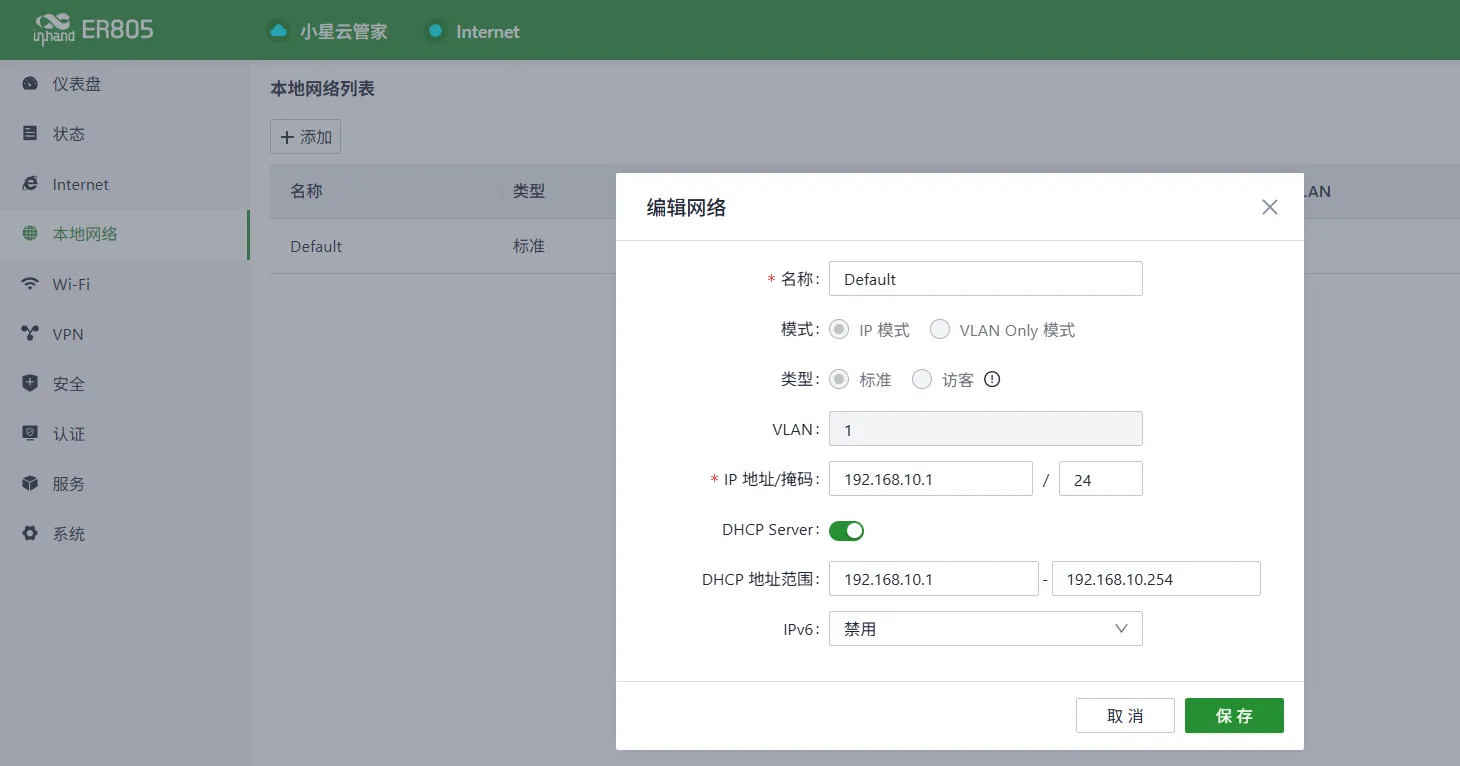
6.2 4G Wireless Network Configuration
- Insert a 5G SIM card
- Enable the mobile network
- APN: Automatic
- Check signal strength
7. Enabling the Device Manager Platform
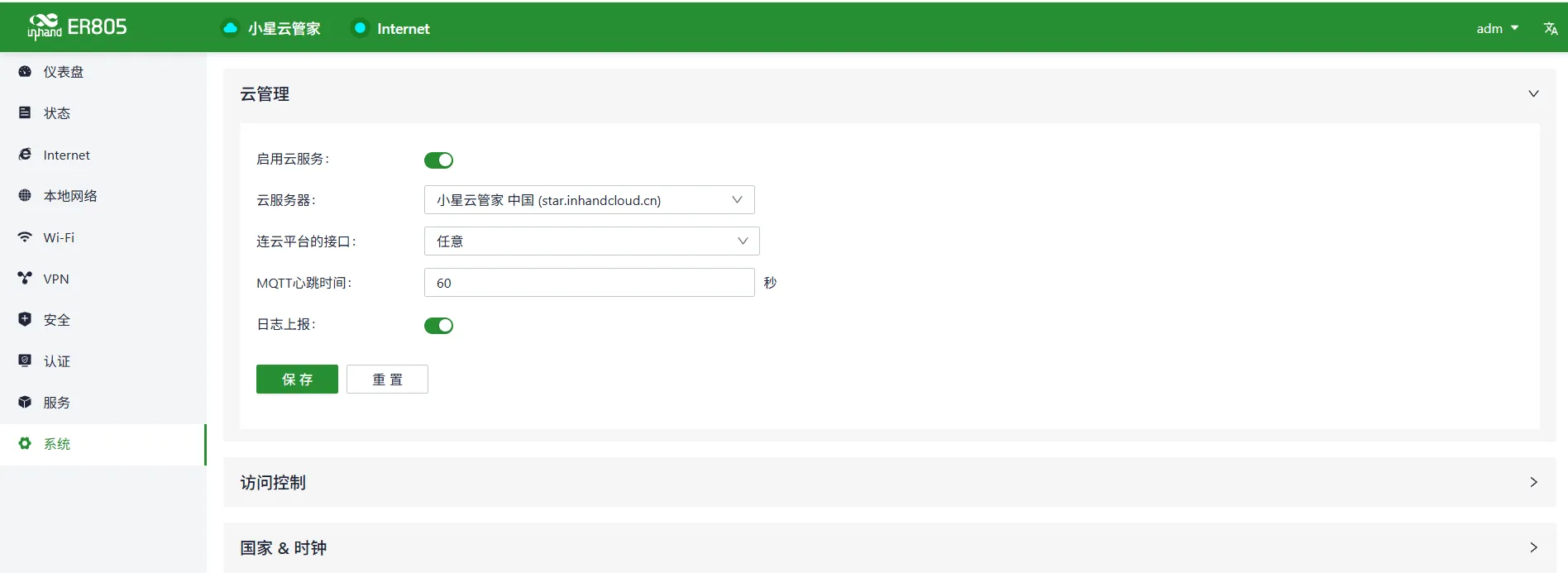 Configure Scheduled Reboot
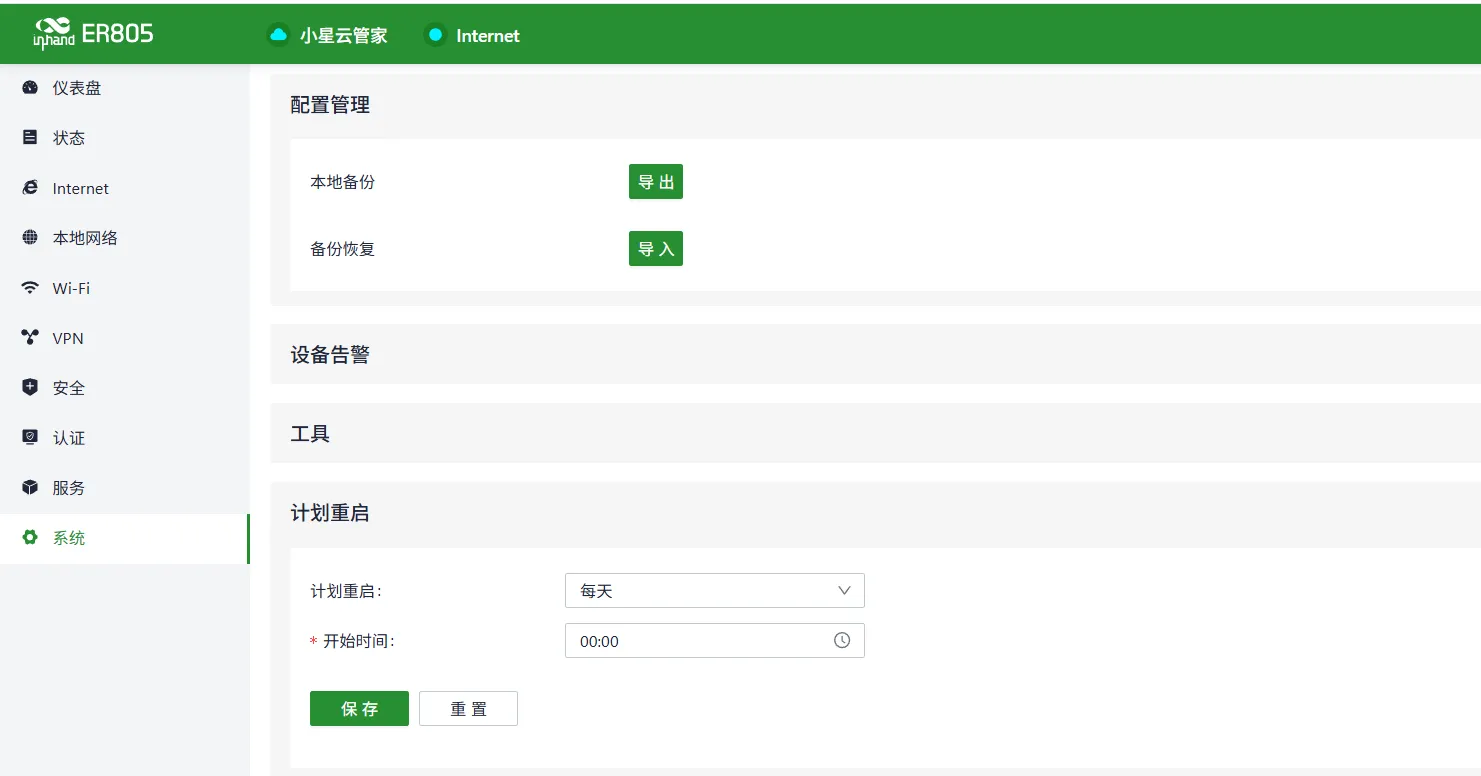
8. Configuration Backup and Restore
- Export the configuration file
- Restore factory configuration
9. Status Monitoring and Diagnosis
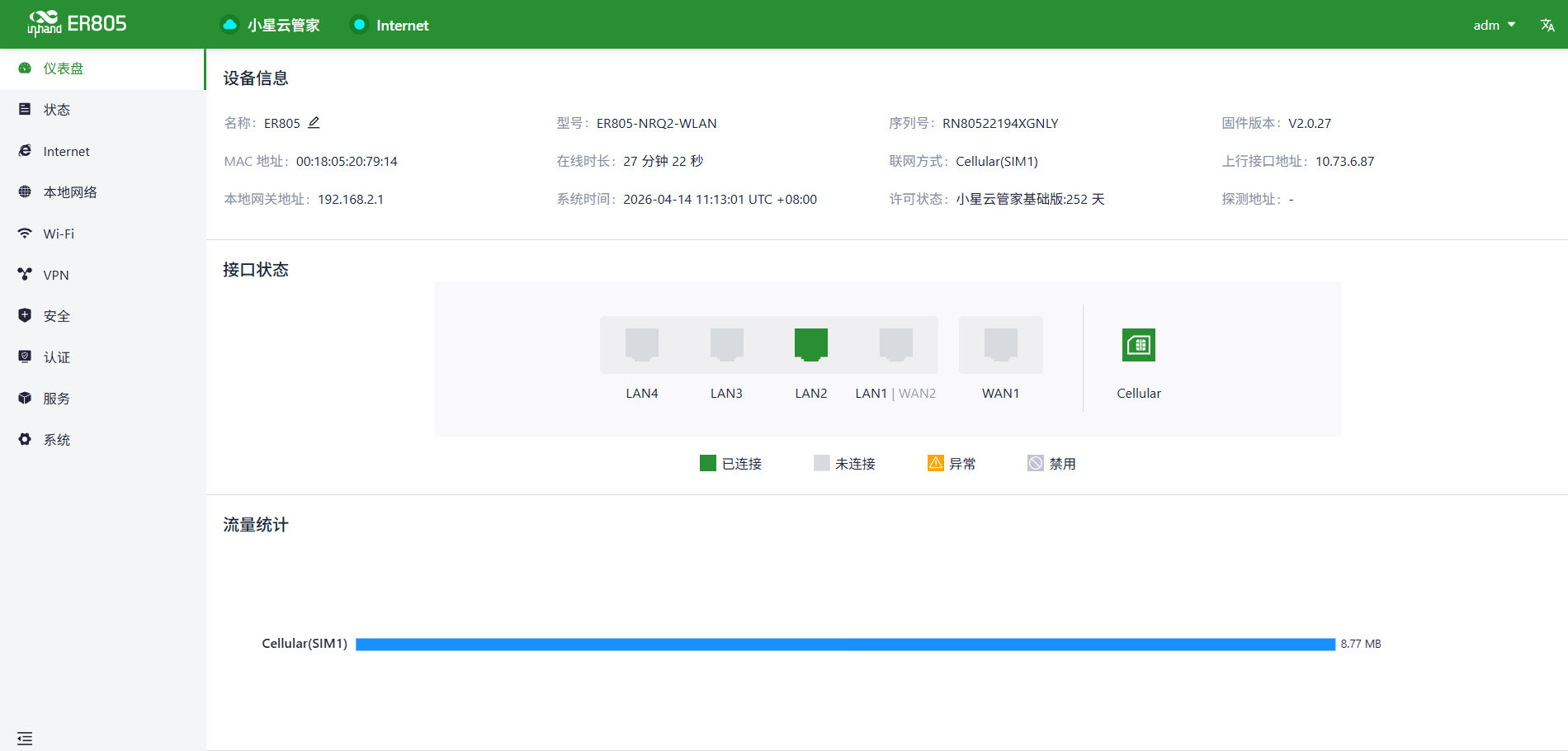
9.1 Running Status
- Device online status
- Network traffic, signal strength
9.2 Log Viewing
- System logs
10. Common Issues and Troubleshooting
- Cannot open the Web interface
- Check the subnet, Ethernet cable, and whether the IP address conflicts
- Reset the gateway and try again
11. Safety Precautions
- Ensure reliable grounding at industrial sites
- Change the LAN port address to the gateway of the local subnet
- Back up the configuration after completing it
- Change the remote access password regularly
- Prohibit operation by unauthorized personnel