
Pregúntale cualquier cosa a la IA

EnConnect

InConnect is a plug-and-play service that creates a secure remote network for your devices, allowing engineers to easily perform remote maintenance, software updates, and log diagnostics.

Remote Access Service

Easy-to-use remote connection service

Devices work out of the box, enabling unified monitoring and remote control, with simple operation requiring no extensive IT/OT knowledge.

Secure and reliable cloud management

High-security cloud servers, advanced access controls, and multi-layer encryption ensure robust network security.

Remote connection for various devices

It supports industrial PCs, servers, cameras, PLCs, and other devices, allowing you to add or remove network sites without rebuilding the network.

Ethernet connection

“One-stop” connection service

InConnect integrates devices and platform in the cloud, providing one-stop, maintenance-free service for a hassle-free plug-and-play experience.

  • Site Management
    Configuration Update Batch remote configuration and task delivery management
    Firmware Upgrade Batch firmware upgrade and upgrade task management
    Operations Analysis Carrier traffic statistics, connection statistics, and GIS device location tracking
    Remote WEB Remote access to routers for configuration changes
    Router/Gateway Asset management for serial number, ICCID, IMSI, etc.; operational monitoring such as network status, traffic consumption, and signal history
    Task Tracking Management of all device system tasks, with online tracking of status and progress
    Terminal Devices Centralized management and maintenance for PLC/HMI and other terminal devices, with remote access support
  • Network Management
    Client Access Supports multiple clients, user login, and access duration control; restricts accessible MAC addresses
    Network Permissions Divides network groups and controls user access permissions to sites and account data management permissions
    Peer-to-Peer Network Designed for remote device maintenance, supports maintenance for PLC/HMI and other devices, with virtual IP and real IP access
    Star Network Designed for remote office scenarios, supports access to internal enterprise servers and file resources from home or while traveling
    Traffic Statistics Statistics for remote connection traffic consumption
  • Network Access Capacity
    Router Access Limit Up to 4,000 access points per registered account
    Terminal Device Access Limit Up to 254 terminal devices per on-site router node
Fetching resources...

Productos relacionados

Casos relacionados

Preview

CNC Machines Remote Monitoring

CNC Machines Remote Monitoring Applications and Cases Key Takeaways Remote Monitoring of…

Learn More →

Intelligent Concrete Mixing Station Solution

Intelligent Concrete Mixing Station Solution Applications and Cases Key Takeaways The IR315…

Learn More →

Remote Monitoring Solution for Digital Factory

Remote Monitoring Solution for Digital Factory Applications and Cases Key Takeaways Remote…

Learn More →

Remote Monitoring of Injection Molding Machines

Remote Monitoring of Injection Molding Machines Applications and Cases Key Takeaways Remote…

Learn More →
See All Cases →

Frequently Asked Questions

What does ICS offer?

ICS is InHand’s one-stop networking service for enterprise customers — a SaaS remote-connection / VPN platform that lets you access globally-distributed business outlets and field devices anytime, anywhere, with simple operations through a browser. Highlights from the V4.1 spec and user manual:

Portal URL — Globalhttps://ics.inhandnetworks.com/
Portal URL — Europehttps://ics.inhandnetworks.eu/ (for users / devices in the European region)
Server deploymentAmazon U.S. for users outside China; Amazon China for users in China; Europe region also deployed
ArchitectureSaaS, plug-and-play; smart virtual IP mapping (no local network reconfiguration required); OpenVPN-based secure connection channels
CapacityUp to 4,000 user accounts + routers per account; up to 254 downstream end devices per router
Cost modelPay-per-traffic ($2.5 / GB per the manual FAQ); each account starts with a 10 GB free traffic credit
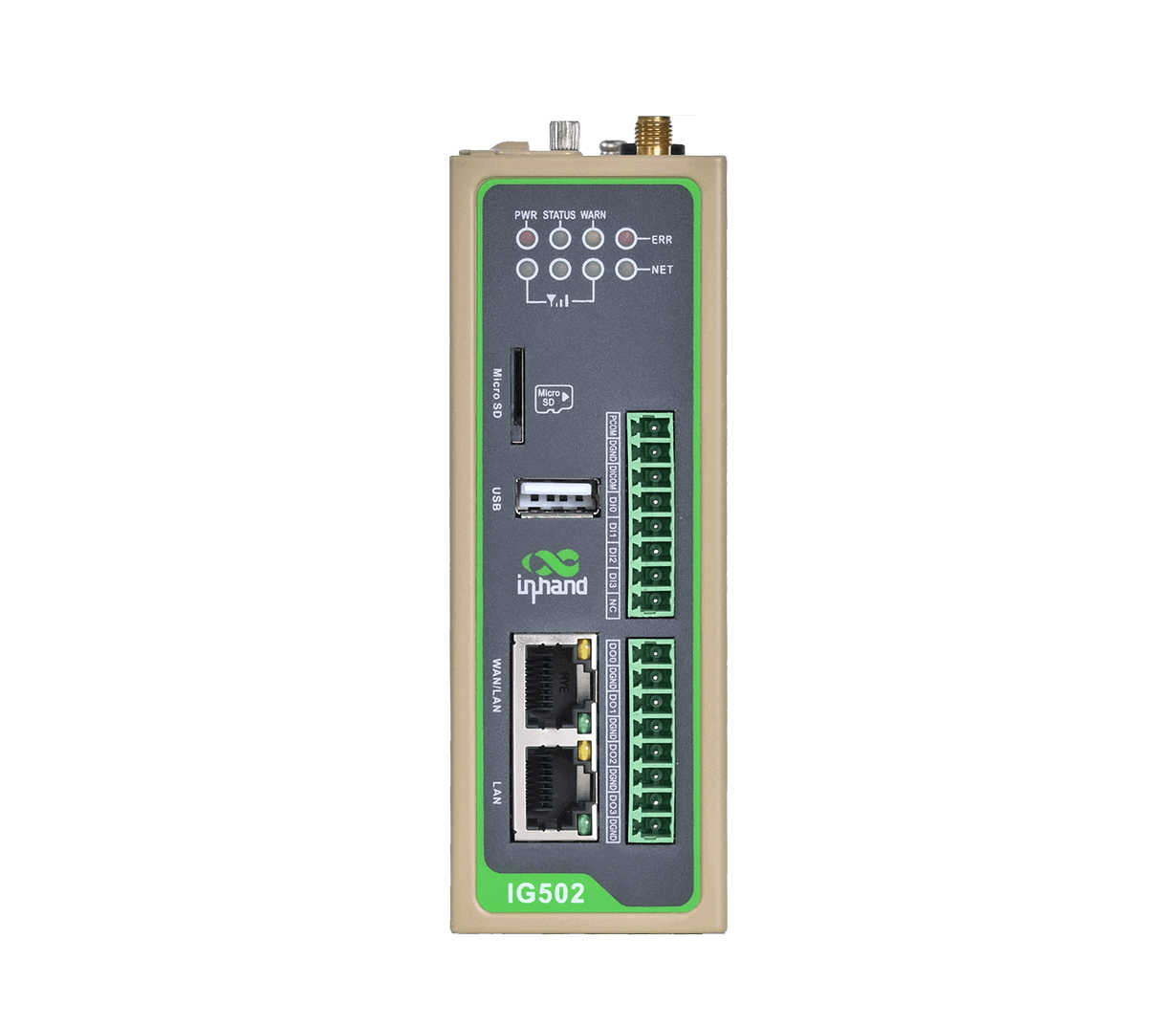
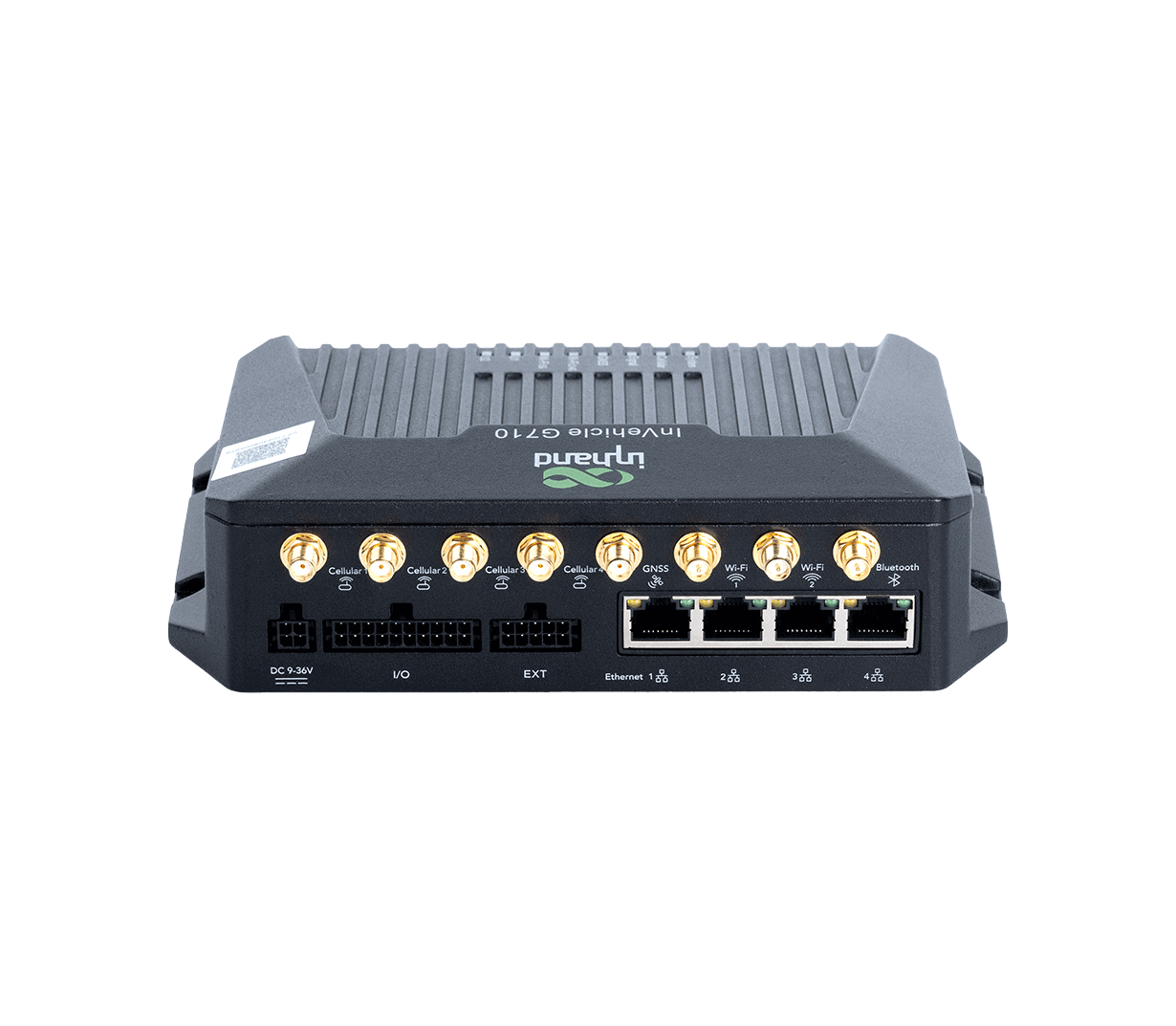
Supported InHand routers / gatewaysInRouter300, InRouter600, InRouter900, InGateway500, InGateway902 (= IG500/IG900), InVehicle G710, InVehicle G814 series
Supported client OSesWindows and Android (OpenVPN client) per the manual; the spec also lists Linux, iOS, iPads, Android tablets

Four access topologies are supported per the V4.1 spec: User-to-device, Site-to-site, Device-to-device, Multiple-to-multiple sites.

Three steps: pre-add the router on the portal, configure the router’s web GUI to point to ICS, then install the OpenVPN client on the engineer’s PC to use the secure connection.

1. Pre-add the router on the portal.
  1. Sign in at https://ics.inhandnetworks.com/ (Global) or https://ics.inhandnetworks.eu/ (Europe).
  2. Choose Sites > Routers and click Add.
  3. In the Create Router dialog, enter a router name, the serial number (from the nameplate or the device’s web management page), and pick the correct router model.
  4. Click OK. The router appears in the list, and ICS allocates a virtual IP address for it.
  5. > The selected router model must match the physical device; otherwise the router may fail to connect.

    2. Configure the router’s web GUI to connect to ICS. Log in with the device credentials on the device nameplate. Menu path varies by series:

    Router familyConnect viaWeb GUI pathSettings
    IR300-Series192.168.2.1 (LAN)Services > Device ManagerService Type = InConnect Service; Server = ics.inhandnetworks.com; Registered Account = your ICS email → Apply
    IR600-Series192.168.2.1 (LAN)Services > Device ManagerSame as above → Apply
    IR900-Series192.168.2.1 (LAN)Administration > Device ManagerSelect Device Manager Enable; Service Type = InConnect Service; Server Address = ics.inhandnetworks.com; Registered Account = your ICS email → Apply & Save
    IG500-Series192.168.1.1 (FE0/1 port)System > InHand Cloud → InHand Connect Service tabServer Address = ics.inhandnetworks.com; Registered Account = your ICS email → Submit
    IG900-Series192.168.2.1 (GE0/2 port)System > InHand Cloud → InHand Connect Service tabSame as IG500 → Submit
    VG710-Series192.168.2.1Administration > Device ManagerSelect Device Manager Enable; Service Type = InConnect Service; Server Address = ics.inhandnetworks.com; Registered Account = your ICS email → Apply & Save

    When the on-device status shows Connected / “Connection Accepted”, the router is connected to ICS. If the status shows Registering, verify the router was actually pre-added to the portal in step 1.

    3. Verify connection and install the OpenVPN client. Back on the portal, the router’s online status turns green when registered, and its VPN status turns green when the secure tunnel is up. If online but VPN is offline, click Send running Config in the Routers/Gateways action column to re-trigger the connection.

    Install the OpenVPN client on your local PC or mobile to actually use the tunnel:

    • Windows: download the OpenVPN client from ICS, install, run as administrator, right-click the system-tray icon → Import file → import your user’s config file (from the Users list) → Connect. When the icon turns green, you’re on the tunnel and can ping the router’s virtual IP. (Disable Windows Defender Firewall or enable ICMP if pings are blocked.)
    • Android: scan the QR code in ICS to download the OpenVPN Android client, import the configuration file, toggle the OpenVPN profile on, and ping the router’s virtual IP to verify.

ICS supports two access modes for downstream end devices — virtual IP (default, auto-mapped, conflict-free) and real IP (uses the device’s on-site IP, more demanding but possible). Both let an authorized engineer reach the end device through the ICS cloud as if local.

Mode A: Virtual IP (default, recommended). ICS auto-maps each downstream device to a virtual IP address so there are no on-site IP conflicts to worry about.

  1. On the portal, go to Sites → End Devices → Add (or click into the parent router and use End Devices → Create).
  2. Enter the end device’s name, its real IP on the router’s LAN, and select the parent site (router) it sits behind.
  3. Click Submit. ICS automatically maps the end device to a virtual IP — for example, a PLC with real IP 192.168.2.215 might be mapped to virtual IP 10.16.46.1.
  4. Up to 254 downstream end devices per router.
  5. On your local PC, install the ICS client and create a connection. Ping the virtual IP to confirm reachability — if the ping succeeds, you can now remotely access the end device (web GUI, PLC programming software, camera live view, etc.) through the ICS maintenance channel using its virtual IP.
  6. Mode B: Real IP. When the application requires the original on-site IP address — e.g., when SCADA tools or PLC programmers are pinned to specific IPs — you can enable real-IP access on a per-router basis.

  7. On the portal, go to Sites > Routers, click into the target router, and Enable real IP access.
  8. Configure the network segment of the downstream device(s).
  9. Add the downstream device(s) that should be reached via the real IP.
  10. Test connectivity through the real IP from your client.
  11. Both virtual IP and real IP work after enabling real IP. Avoid duplicate IP addresses across sites to prevent access conflicts — for complex deployments, use ICS’s Networks module (Mesh or Star) for additional isolation.
    1. NetworksMesh Networks isolate access so only users and sites in the same mesh can communicate (a per-mesh Device-to-Device Access switch can further block router-to-router access while still allowing user access). Star Networks provide hub-and-spoke topology. The Default Network is a mesh that all new routers and users join automatically.
    2. Router management (Sites → Routers): Router List with site tag, ICCID, IMEI, signal/traffic stats, and custom column fields for tagging; Router Details for Remote Web Management (open the router’s local web GUI through ICS), forced offline, batch config update (template-based), batch firmware upgrade, and a Tasks page to view / redeliver / cancel dispatched tasks.
    3. User management — Add users with Login Permission (Allow / Not Allowed); invite External Users (engineers with their own ICS accounts) into your organization; Roles are *Administrator* (full view + management) or *Common user* (basic ops only); enable Multi-terminal to let a user access remote devices from multiple devices concurrently.
    4. Consumption & billing — view per-router / per-user traffic on the Consumption page; service is pay-per-GB ($2.5/GB) with a 10 GB free traffic credit at account creation; monthly bills emailed on the 1st.

También te puede gustar